
How to Personalize Microsoft Copilot for Better AI Results
Microsoft Copilot becomes far more useful once it understands how you work. A few minutes spent on personalization, telling Copilot your role, your writing style, and how much detail you want, produces better answers for emails, meeting notes, planning, and documentation.
For teams preparing for broader AI adoption in 2026, it is one of the simplest steps toward real AI readiness. Custom instructions are especially useful because they are reusable. Instead of re-explaining your preferences every time, you tell Copilot once and refine over time.
AI Readiness 2026 takeaway
AI tools are most valuable when they are secure, practical, and aligned with how people actually work. Personalization is one of the easiest starting points for better adoption and consistency.
Why personalization matters
Without it, Copilot can give answers that are too broad, too detailed, too casual, or simply off for your role. A short set of custom instructions fixes most of that. It helps to tell Copilot:
- Your role and the work you do most often
- Your preferred tone and writing style
- Whether you want summaries, examples, recommendations, or step-by-step detail
- How much detail you usually want
- The tools and workflows you use regularly
- How to handle uncertain or incomplete information
- Any response styles you want it to avoid
Where to find personalization
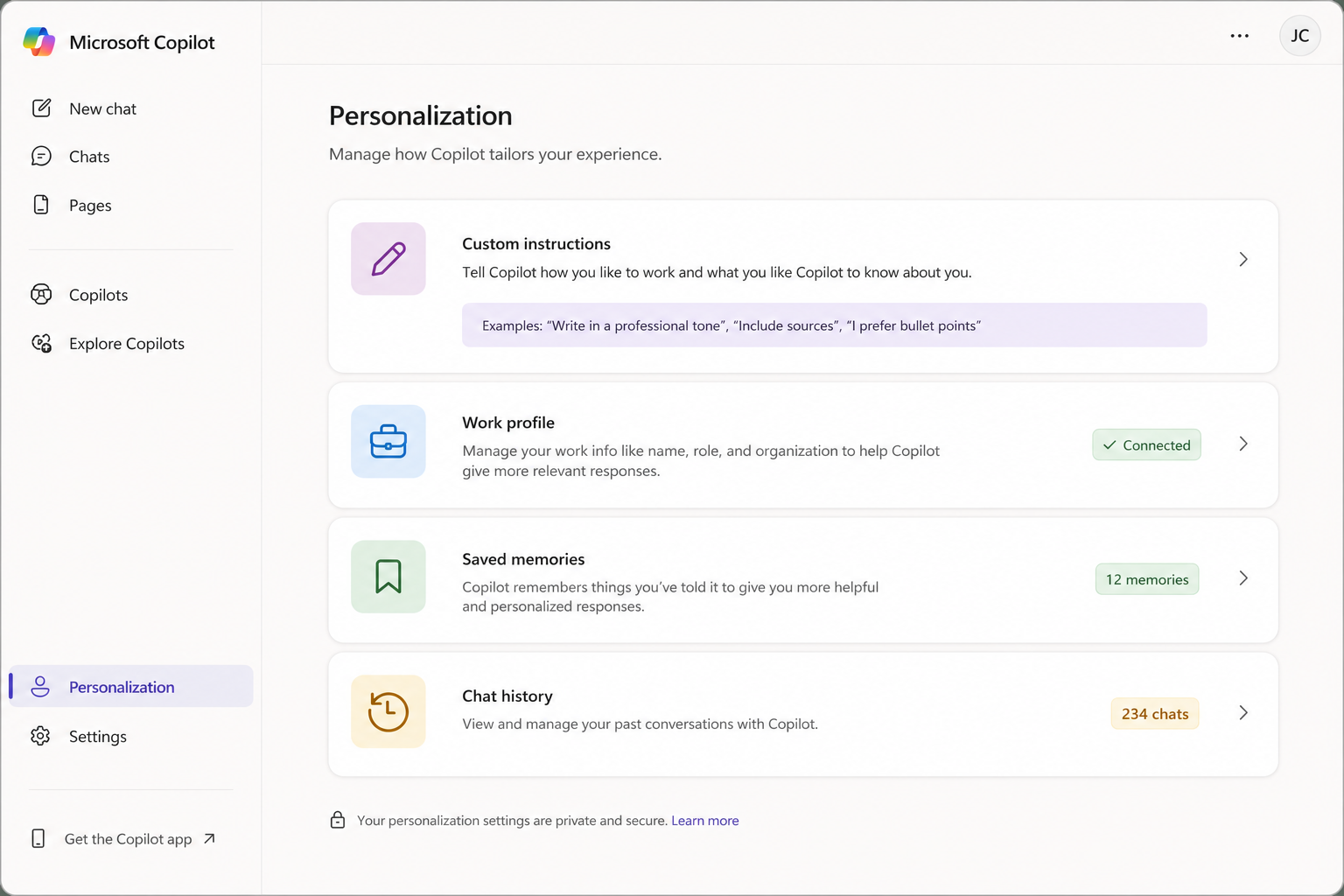
Microsoft updates the interface over time, so the exact layout may vary, but the path is consistent: Settings → Personalization → Custom instructions.
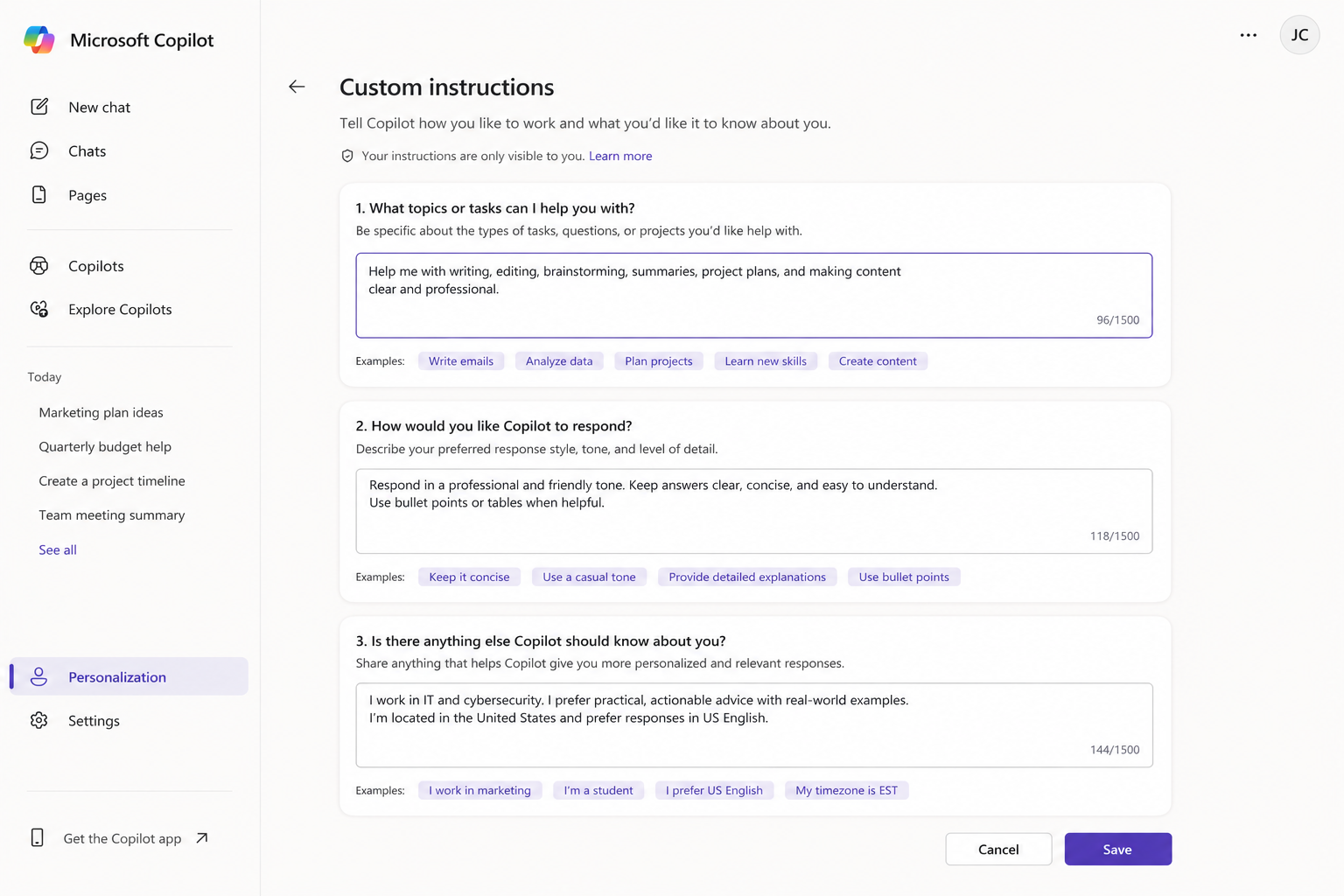
In the Copilot app, open your profile or settings menu and choose Settings. Go to Personalization and confirm that Custom instructions, Saved memories, and Chat history are enabled if available. Select Edit instructions, paste your instructions into the text box, and Save.
Two prompts to build your custom instructions
If you are not sure what to write, let Copilot interview you. Paste one of the prompts below and answer one question at a time.
Prompt 1 · New to Copilot
I'm new to Microsoft Copilot and ChatGPT. Interview me to help build custom instructions that make your responses more useful to me. Ask up to 20 questions, one at a time, and use each answer to choose the next. Try to understand who I am and what I do, what I use AI for, my preferred writing style and response format, my role and industry, how much detail I want, whether I prefer direct recommendations or several options, how you should handle uncertainty, the tasks I do often, and what I don't want in responses. When you're done, give me two things: a short version I can paste into Copilot, and a detailed version covering my role, goals, communication style, formatting preferences, and examples. Label any assumptions, and ask a follow-up if one of my answers is unclear.
Prompt 2 · For leaders and managers
Act as an AI onboarding consultant and help me create strong custom instructions for Microsoft Copilot. Interview me with up to 20 questions, one at a time, using my answers to pick the next. Learn my role and responsibilities, my industry and organization type, the work I want AI to help with, my communication style and preferred tone for emails and documents, how brief or detailed I want answers, whether I prefer steps, summaries, examples, or recommendations, the tools I use, the decisions I need help with, the mistakes and response styles to avoid, how to handle sensitive or incomplete information, whether to challenge my thinking, my formatting preferences, and any words or punctuation I dislike. When finished, produce a short version, a detailed version, five reusable prompt templates for my work, and a list of things to avoid. Keep it clean and ready to paste into Copilot.
A ready-to-use example
If you would rather start from something concrete, this works well as a base and can be edited to fit your role:
Example custom instruction
I use Copilot for business writing, planning, research, meeting notes, process documentation, and decision support. I prefer clear, practical responses with direct recommendations. Keep answers concise unless I ask for more detail. For emails, use a professional but natural tone. For instructions or technical topics, provide step-by-step guidance. If information is uncertain or incomplete, say so clearly and explain what is missing. Avoid overly generic answers, unnecessary filler, and overly formal language.
Best practices
Good custom instructions do not need to be complicated. The best ones are practical, specific, and easy to reuse. Start with the basics and update as you learn what works: name your role or department, describe your most common tasks, state your preferred tone and answer length, say whether you want bullets, summaries, examples, or steps, mention the tools you rely on, and note any formatting or writing styles you dislike.
Why this supports AI readiness in 2026
For most organizations, the hard part of AI is not turning the tool on. It is helping people use it safely, consistently, and productively. Personalizing Copilot moves teams in that direction by improving response quality, cutting the time spent rewriting prompts and fixing tone, and creating a more consistent experience across common tasks. It also lays a foundation for broader AI training, governance, and Microsoft 365 readiness, without requiring advanced technical knowledge.
Final tip
The best custom instructions improve over time. Start with a simple version, use Copilot for a few days, then update your instructions based on what worked and what did not.
Getting your team ready for practical AI in 2026?
DDSystems helps organizations across Maryland, DC, and Delaware prepare their Microsoft 365 environment and their people for secure, practical AI adoption. Let's talk about where to start.
Schedule an Appointment